Usual planetary processing (avi)
ProcedureAvi planetary processing step by step⚓
Attenzione
Support for films such as AVI has been dropped and many functions of Siril will not work for them, in favour of the SER format. This version of Siril provides a way to convert films into SER sequences, on which all Siril processing functions are supported.
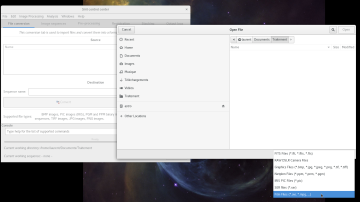
open file
Go to the
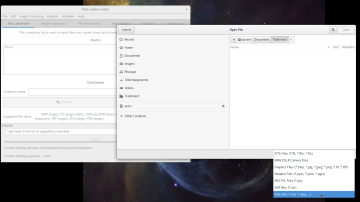
File/OpenmenuIn the file type selection list choose Film Files (*.avi,*.mpg,...)
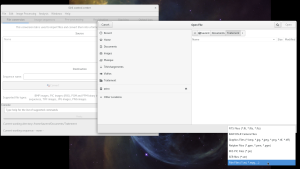
File select
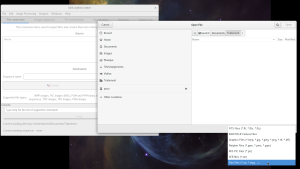
Select the AVI file to be processed and click Open
reference image
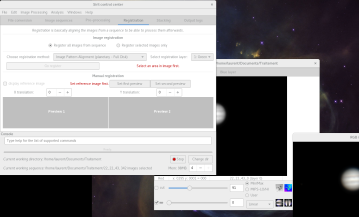
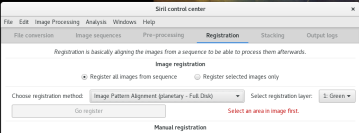
Go to the
Registration tab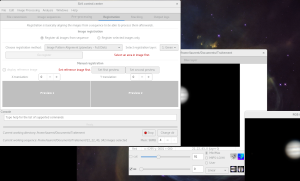
Registration
Set
Image Pattern Alignement (Planetary - Full Disk)as Registration methodSelection
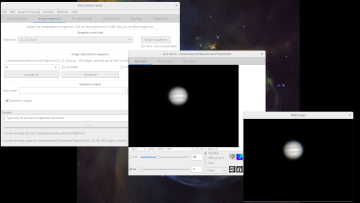
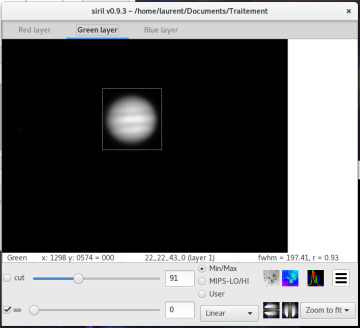
Go to the preview window and select the area around the planet
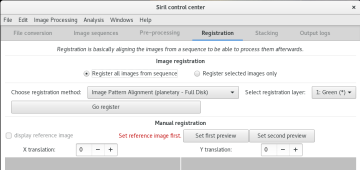
Reference Image
Click on
Go registrer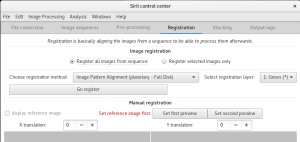
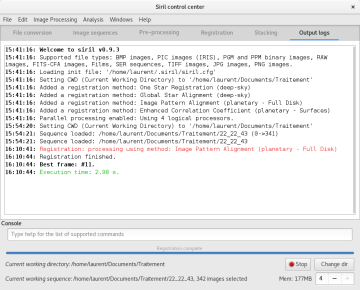
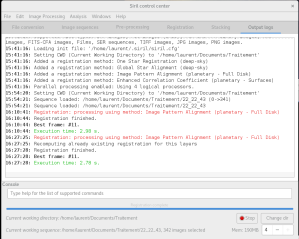
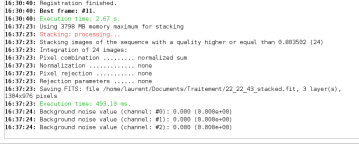
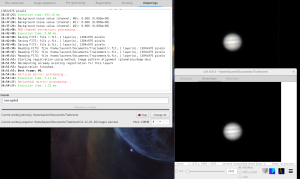
In the Output tab logs will point you to the best picture
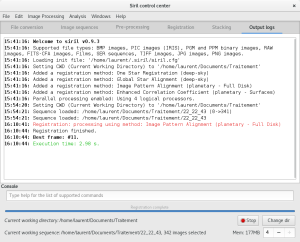
Best frame : here #11
reference image
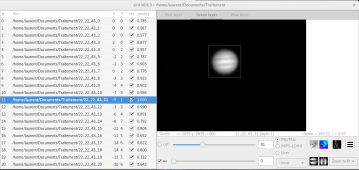
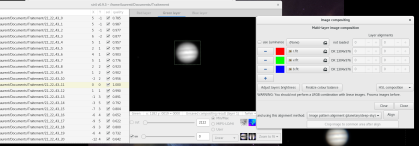
Go to the preview window, display the image list

Select the best picture with a double click
reference image selection
Go to the tab
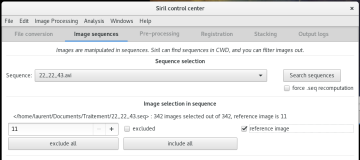
Images sequencesthen checkreference imageRegistration
Go to the tab
Registrationand click onGo registerStacking
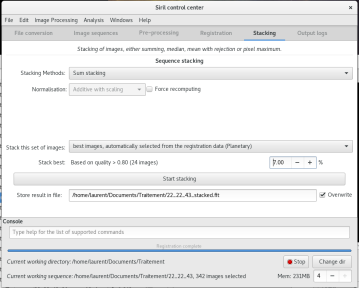
Use Sum stacking with avi FILES
Choose
best images, automatically selected from registration data ( Planetary )Choose the % of images to use, depending on the quality level referred
Click on
Start stacking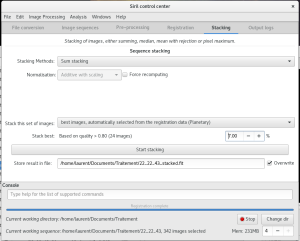
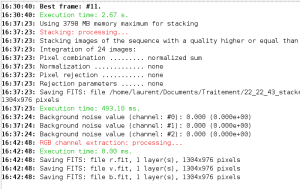
Extraction of RGB channels
Go to the Image menu
Processing/Extraction/Channel...Choose r in Channel #1
v in Channel #2 et b in Channel #3
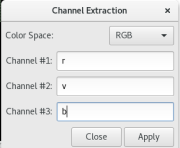
Click on
applyImage compositing
Go to the
Image Processing/RGB CompositingChoose files previously created for red, green and blue
Choose
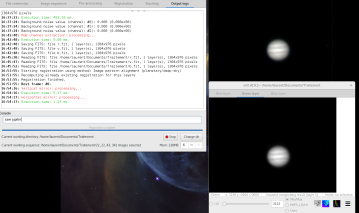
Image pattern alignment (planetary/deep-sky)Select an area around the planet in the pre viewing window and then click on
Align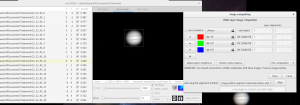
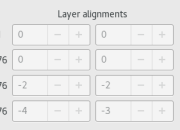
Cliquez sur
Close
flip your image if needed
Then save it
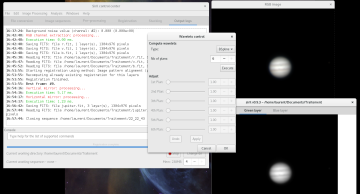
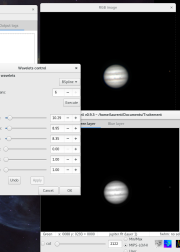
wavelet processing
Load your saved image
Menu
Image Processing/ A trous Wavelets Tranform...Traitement
Click on
ExecuteMake your settings
Save file
Click on
okclose the wavelet dialog boxMenu
file/Save as...and choose the saving format