Color calibration tool
First, we need performing a balancing of the colors of a linear RGB. Siril provides a tool of color calibration.
Two steps are necessary:
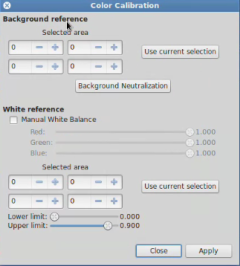
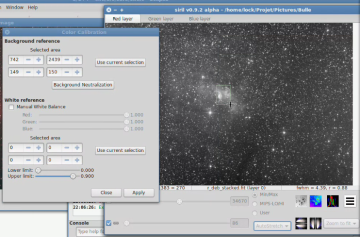
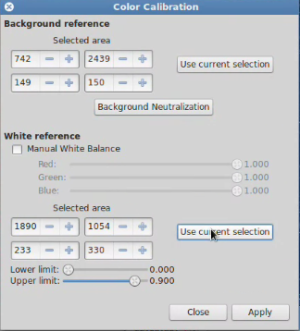
You must select a background area with no stars and click on "select" in the "black selection" frame. Click on "background neutralization" will neutralize the background by aligning median values.
In the second step, you need to select the "white selection" area. So, make a selection containing a nebula part and click on apply. Be warn that black selection MUST be always selected. However, your image must be cropped before in order to remove any frame that could misleading the tool.
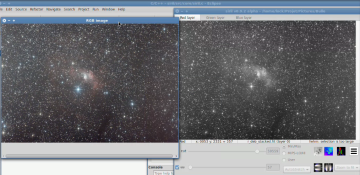
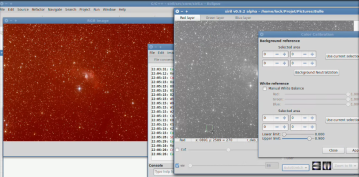
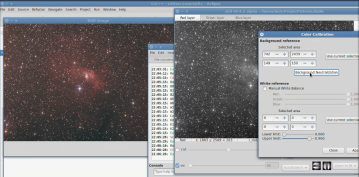
See the complete operation process below
ProcedureColor calibration⚓
The colour calibration tool performs a balancing of the colours of a linear RGB deep-sky image.
Attenzione
Note that Background Equalization (now called Background Neutralization) has been moved in the calibration box because it is needed before any calibration.
You must have an image in memory
Open the
Color Calibrationmenu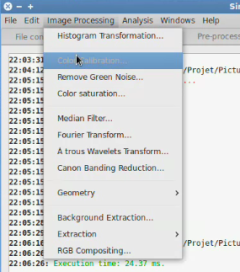
Neutralizing the background
Select a background area
Click on
Use current selectionClick on
Background NeutralisationWhite reference
Select a reference area for white balance
Click on
Use current selectionin the White reference zoneClick on
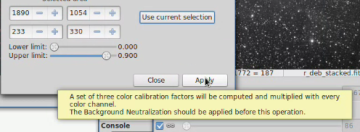
ApplyClick on
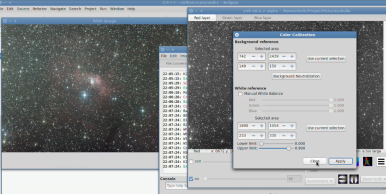
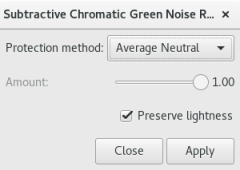
Closeto close the dialog boxReducing green tint in processed images
This tutorial shows how to remove the green tint in processed images using the graphical user interface.
This function can also be accessed from the command line, with the rmgreen command.
Open the
Image Processing/Remove Green Noise...menuClick on
ApplythenClose